Crew Labor and Timesheets
Use this workflow when internal crews, jobsite presence, labor hours, or timesheet approvals need review. Labor data should support job costing, payroll readiness, schedule planning, and accountability.
Workflow outcome
At the end of this workflow, crew assignments should be visible, jobsite presence should be understandable, time entries should be approved or corrected, and payroll or job-costing issues should not be left ambiguous.
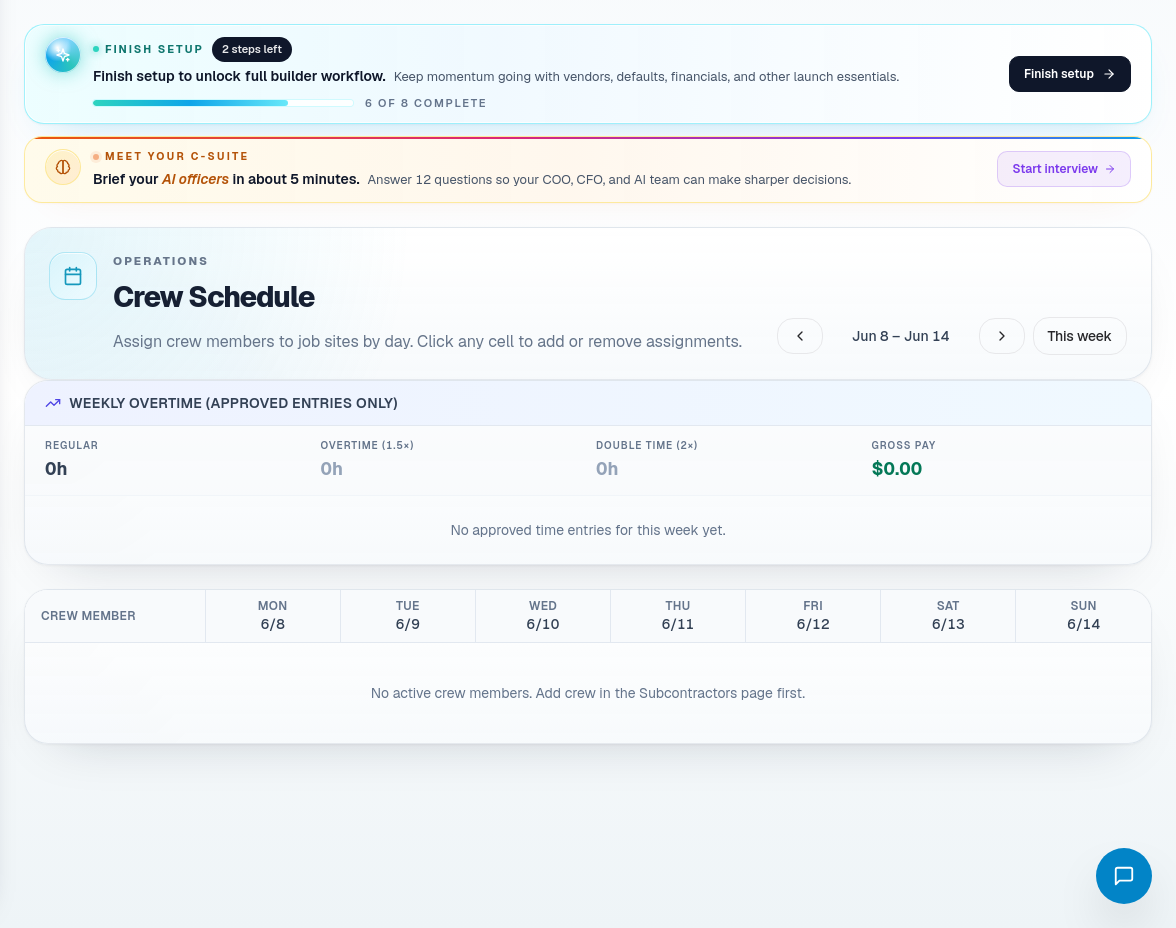
Step 1: Review crew schedule
Open Crew Schedule before approving labor or making field assignments.
Check:
- Which crews are assigned.
- Which jobs they are assigned to.
- Whether the schedule matches actual job readiness.
- Whether materials, subcontractors, or inspections create idle-time risk.
- Whether the assignment conflicts with other commitments.
Do not schedule internal crews into a phase that procurement or subcontractor readiness already makes impossible.
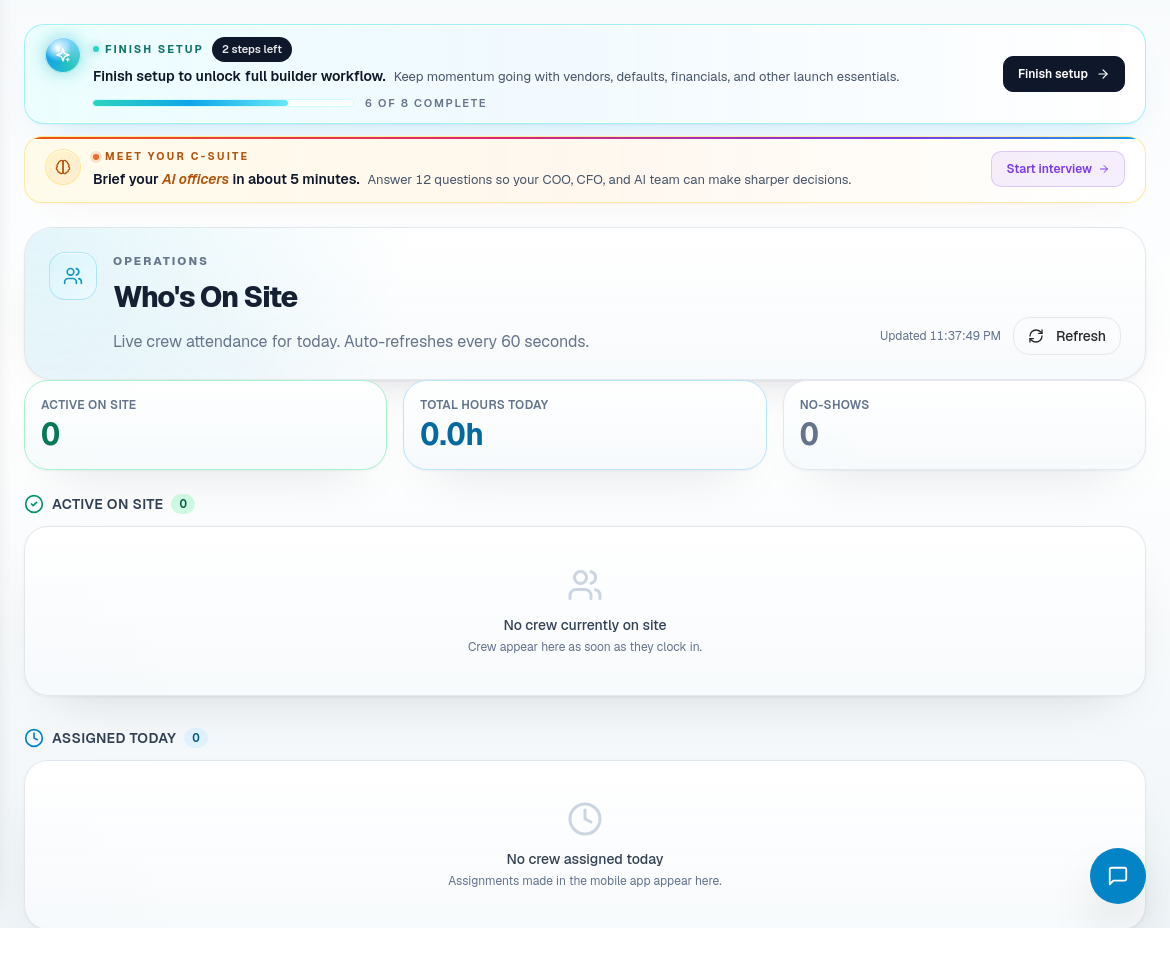
Step 2: Confirm jobsite presence
Open Who's On Site when you need to understand actual field activity.
Use it to answer:
- Who is currently on site?
- Which job are they tied to?
- Does current presence match the schedule?
- Are there safety, access, or accountability concerns?
- Is there a mismatch that should become a note, adjustment, or manager review?
Step 3: Review time entries
Open Timesheet Approval for submitted labor entries.
For each entry, verify:
- Employee or crew member.
- Job.
- Date.
- Start and end time.
- Breaks or exceptions.
- Work performed.
- Manager notes.
- Any mismatch against schedule or site presence.
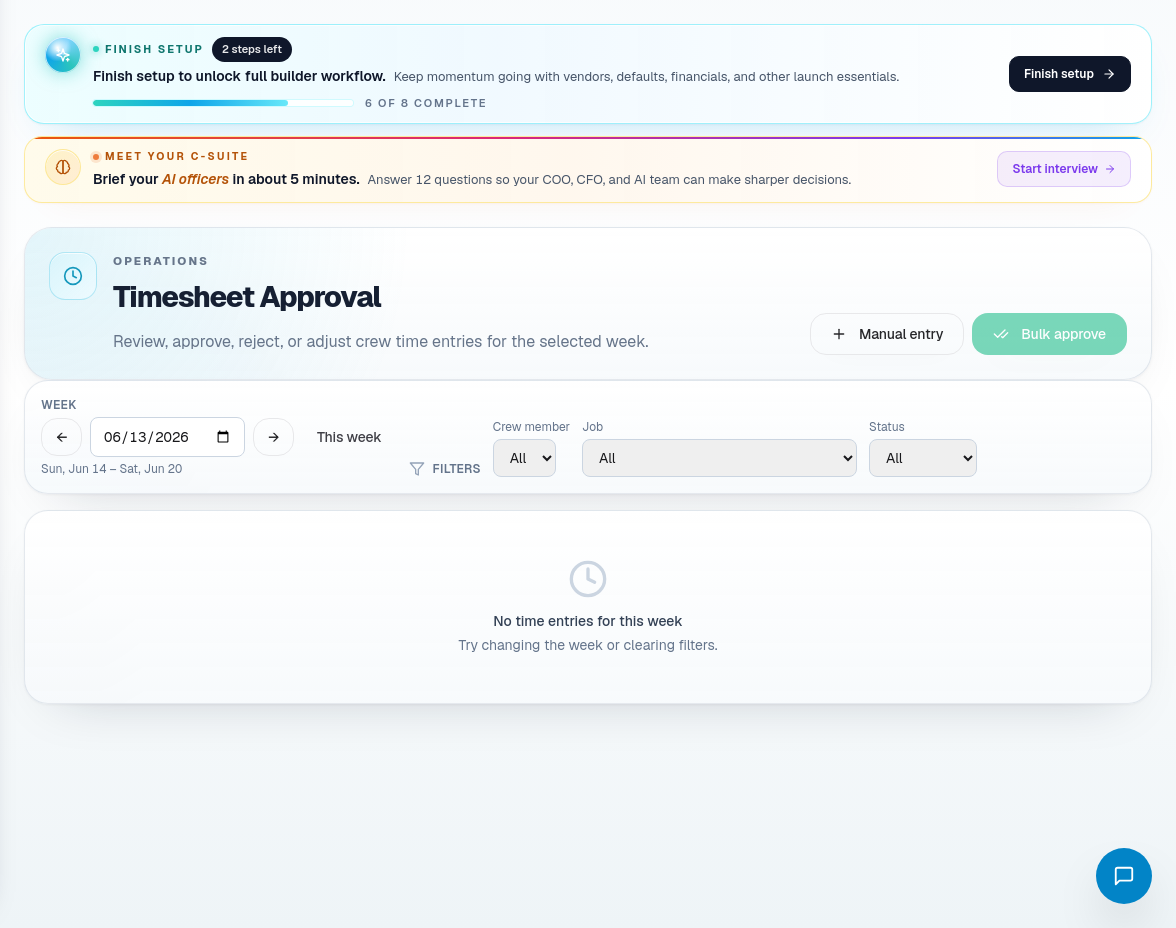
Step 4: Approve, reject, adjust, or add manual time
Use the action that reflects the evidence.
| Action | Use when |
|---|---|
| Approve | The entry is accurate and ready for payroll/job costing. |
| Reject | The entry is wrong and should be resubmitted or excluded. |
| Adjust | The entry is mostly correct but needs a documented correction. |
| Manual entry | A valid time record is missing and must be added by an authorized user. |
Always include a reason for rejected or adjusted time. Payroll and field managers need to understand the decision later.
Step 5: Watch labor analytics
Use In-House Labor and labor analytics to review trends after individual entries are clean.
Look for:
- Jobs using more labor than expected.
- Crews repeatedly waiting on materials or subcontractors.
- Overtime risk.
- Mismatch between schedule plan and actual time.
- Training or staffing needs.
Step 6: Feed labor findings back into operations
Labor problems should update the source workflow.
- Schedule mismatch -> update Build Calendar or CascadeIQ.
- Material delay -> update Procurement or PO lifecycle.
- Job issue -> update Job Detail or QA/QC.
- Payroll issue -> update Financials or payroll workflow.
- Workforce pattern -> raise in CHRO or C-Suite review.
Related screens
| Portal area | Use it for |
|---|---|
| Crew Schedule | Internal crew planning and assignments. |
| Who's On Site | Actual jobsite presence and field visibility. |
| Timesheet Approval | Approve, reject, adjust, or manually enter labor time. |
| In-House Labor | Internal labor rows and capacity. |
| Labor Analytics | Trends, utilization, overtime, and job costing signals. |
| Financials / Payroll | Payroll readiness and financial posting context. |