Create and Set Up a New Job
Use this workflow when a sold project needs to become active construction work. A job is the operating record for scope, schedule, materials, subcontractors, documents, homeowner context, blockers, and downstream approvals.
Workflow outcome
At the end of this workflow, the job should exist in PoolPM, the contract or SOW should be attached when available, material handling should be set, missing information should be tracked, and the builder should know what must be reviewed before subcontractors or purchase orders are approved.
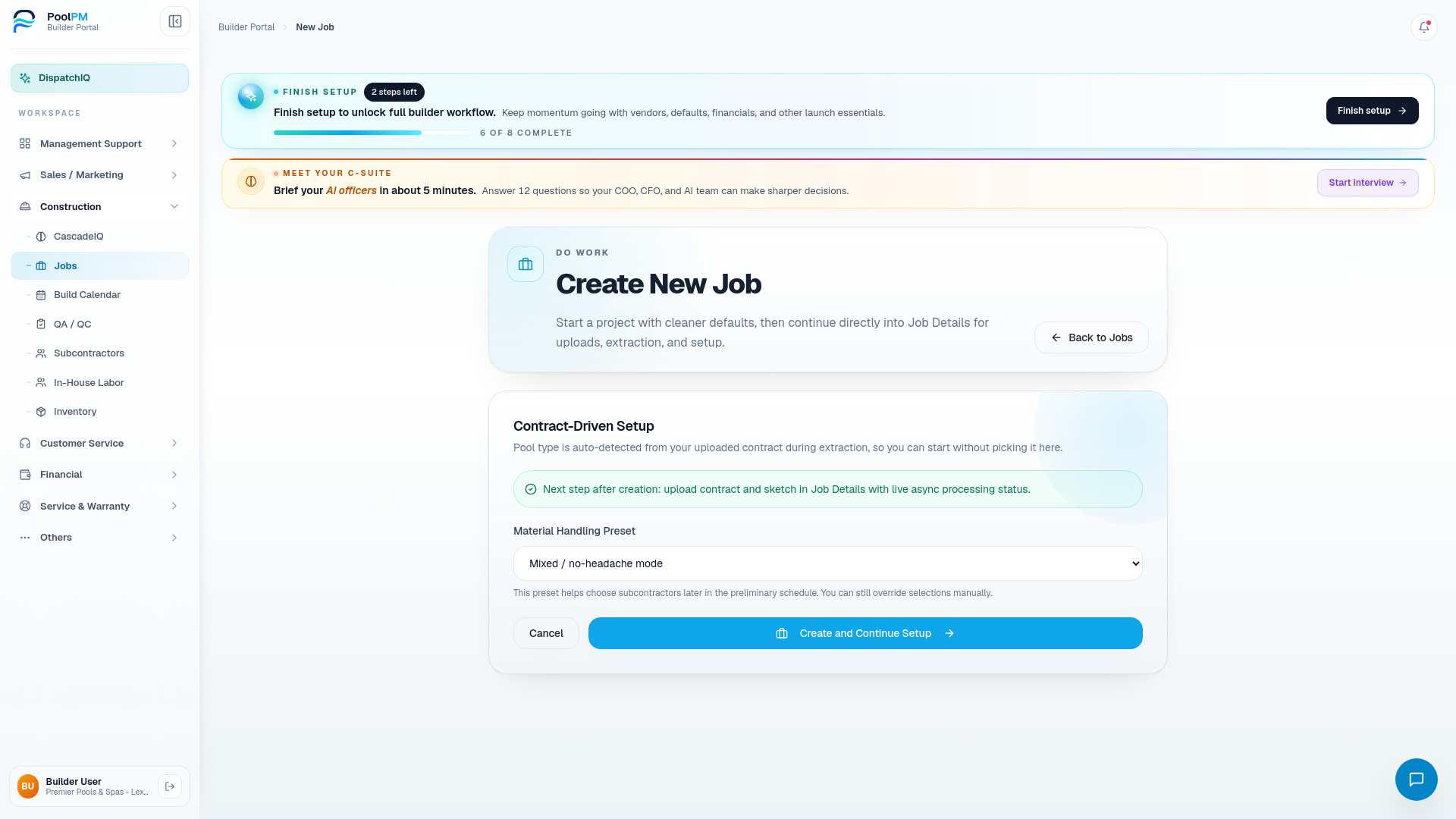
Step 1: Start the job record
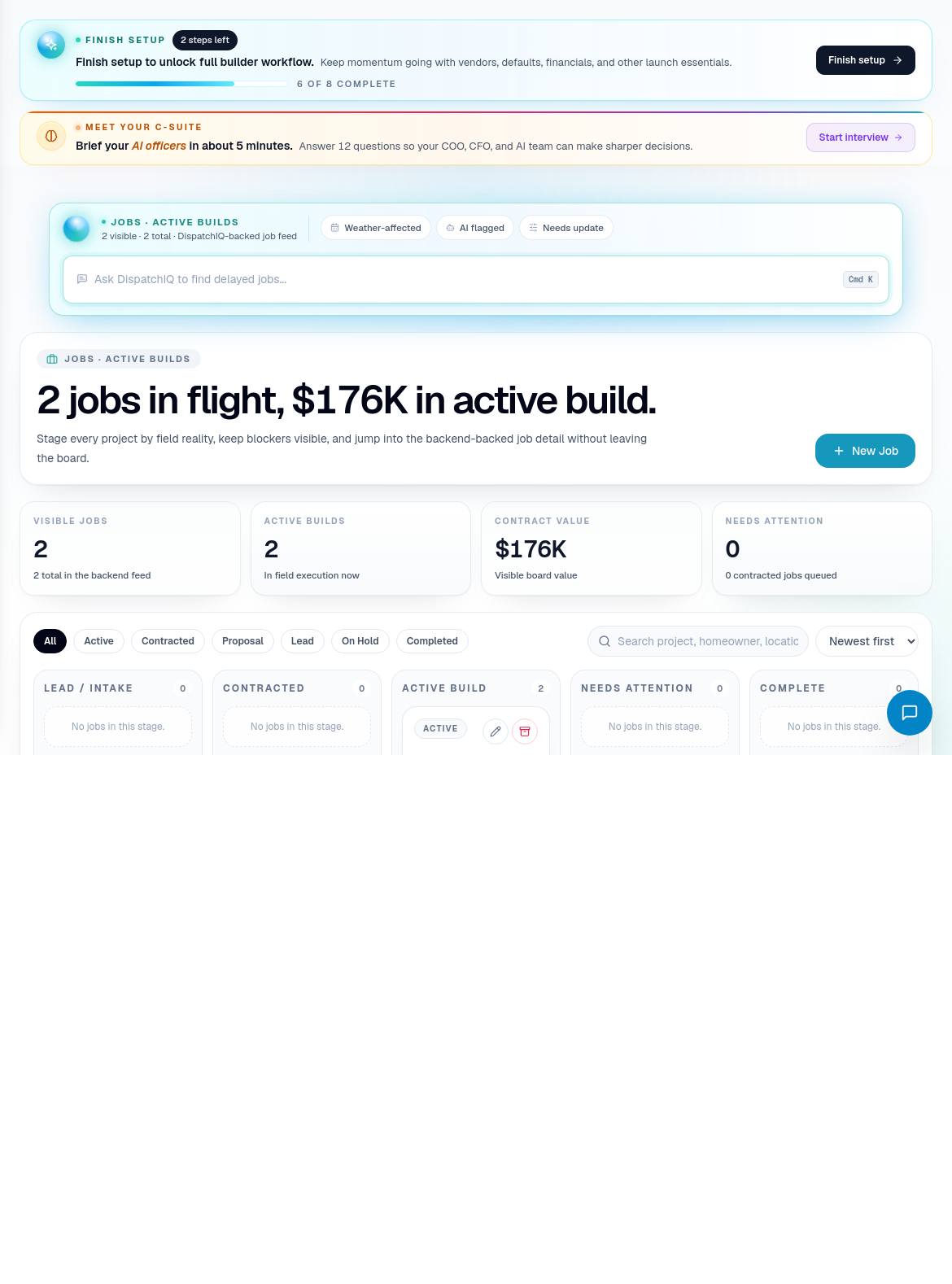
Open Jobs and choose New Job.
Fill the starting fields carefully:
- Enter the project or homeowner name in a way the whole company will recognize.
- Connect the homeowner or customer record when available.
- Add address and contact context before field scheduling begins.
- Select the material handling preset:
- Subcontractor buys materials when trade partners own most material purchasing.
- Builder manages BOM / materials when procurement and PO tracking should be builder-controlled.
- Mixed / no-headache mode when the job will combine builder-managed and subcontractor-supplied materials.
- Create the job and continue setup.
The material handling choice matters because it changes how the team thinks about procurement, PO review, subcontractor packages, and schedule readiness.
Step 2: Upload contract and project documents
On the job detail setup flow, upload the contract, SOW, sketches, selections, or other project documents that define the work.
Use document extraction as a starting point, not as a substitute for builder review:
- Upload the best available contract or SOW.
- Let PoolPM extract project context, pool type, phases, material signals, and open questions.
- Review extracted values before relying on them in schedule or procurement.
- Add missing details as TBD items when they are not known yet.
- Keep the original document attached so the team can audit decisions later.
If a contract is not ready, create the job only when the team still has enough operational context to proceed. Otherwise finish the sales handoff first.
Step 3: Resolve TBD items
Use TBD items for anything that blocks clear execution but is not ready to decide yet.
Good TBD items are specific and assignable:
| Weak note | Better TBD item |
|---|---|
| "Need selections" | "Homeowner must confirm interior finish color before plaster PO." |
| "Permits" | "Office must confirm permit submission date and inspection dependency." |
| "Equipment?" | "Sales must confirm pump/filter package included in accepted quote." |
| "Access issue" | "PM must verify excavation access width before assigning excavation sub." |
TBD items should be cleared or owned before they become schedule problems.
Step 4: Review schedule and phase readiness
Open the job's schedule workbench or the Build Calendar after the job is created.
Before adding or moving field work:
- Confirm the first phase is actually ready.
- Confirm predecessor work is complete or intentionally bypassed.
- Confirm subcontractor availability and qualification.
- Confirm material and delivery readiness for the phase.
- Confirm inspection, HOA, or permit dependencies.
- Add notes that explain why the schedule is safe to commit.
Next guide: Schedule Subcontractors.
Step 5: Review outbound subcontractor and PO packages
When PoolPM prepares outbound work, review the suggested subcontractor packages and material/PO drafts before final approval.
Approve only when the package is operationally true:
- The right trade partner is assigned.
- Scope and phase instructions are clear.
- Required documents and job context are included.
- Purchase orders match the material handling plan.
- Anything still waiting is held instead of approved.
- Send progress shows what is queued, delivered, or still waiting.
Step 6: Keep the job current
The job record becomes useful only if it stays current.
Update the job when:
- Scope changes.
- Schedule dates move.
- Materials slip or arrive.
- A subcontractor assignment changes.
- Homeowner commitments change.
- Payment or approval status changes.
- QA/QC evidence creates a new issue.
Related screens
| Portal area | Use it for |
|---|---|
| New Job | Creating the project record and choosing material handling. |
| Job Detail | Contract setup, TBD items, schedule workbench, documents, outbound package review. |
| Jobs | Active project list and project-level context. |
| Build Calendar | Field schedule and phase timing. |
| CascadeIQ | Approval-required schedule moves and schedule intelligence. |
| Procurement | BOM, PO, vendor, and material readiness. |
| Subcontractors | Trade partner qualification and assignment readiness. |