Financial and Payment Approvals
Use this workflow when a payment, invoice, subcontractor payout, AR/AP item, or financial exception needs review. Financial approvals should connect back to jobs, vendors, subcontractors, and real operational status.
Workflow outcome
At the end of this workflow, the financial item should have a verified source record, approval decision, payment or hold status, and any needed job, procurement, or subcontractor follow-up.
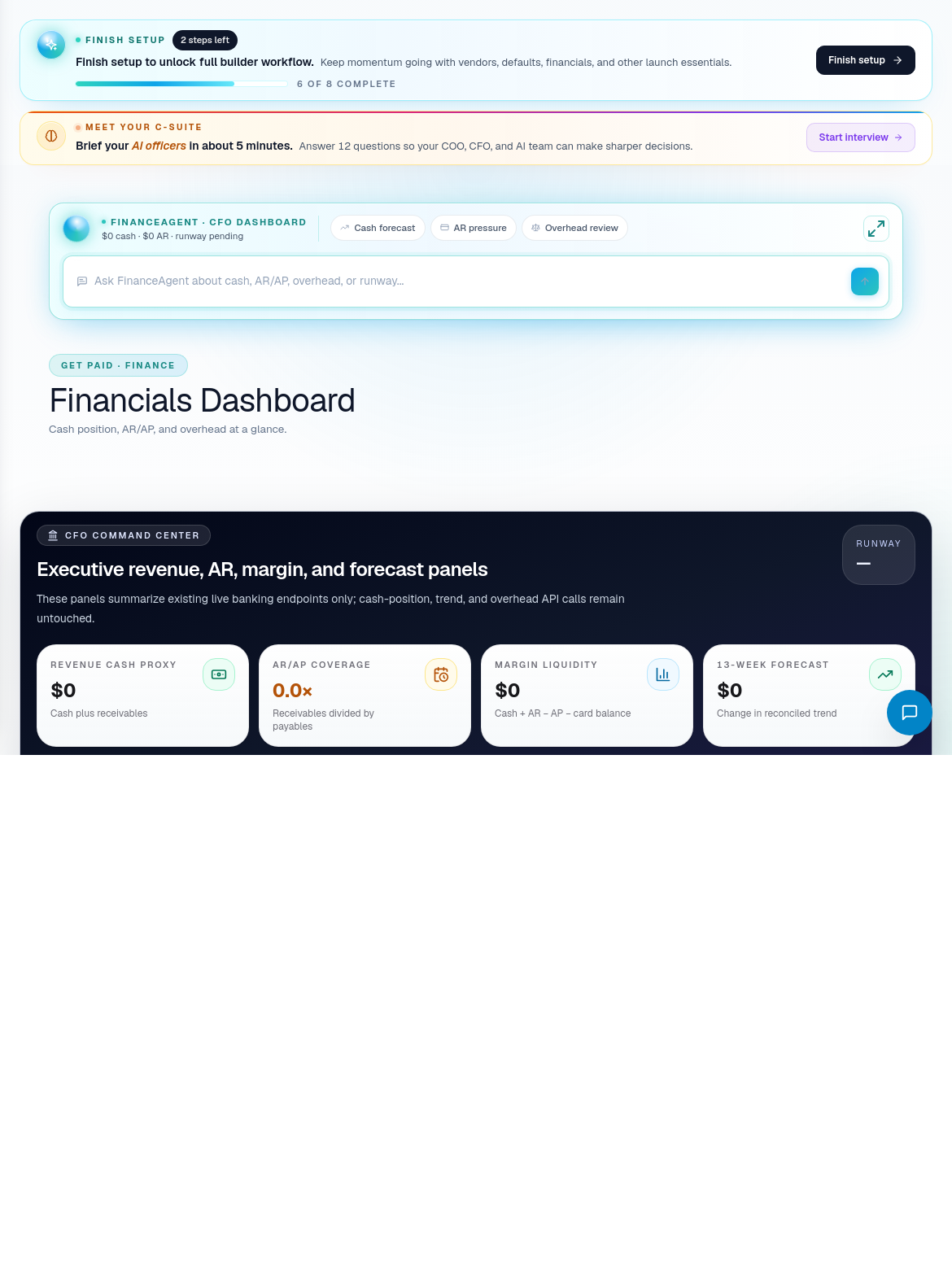
Step 1: Review the financial dashboard
Open Financials Dashboard or Financials.
Check:
- Cash and payment signals.
- AR/AP items needing attention.
- Job-level financial risk.
- Revenue or expense exceptions.
- Approval queues.
- Any leadership alerts from PulseIQ or C-Suite.
Use the dashboard to prioritize. Do not approve from summary context alone when the underlying job, invoice, or subcontractor status is unclear.
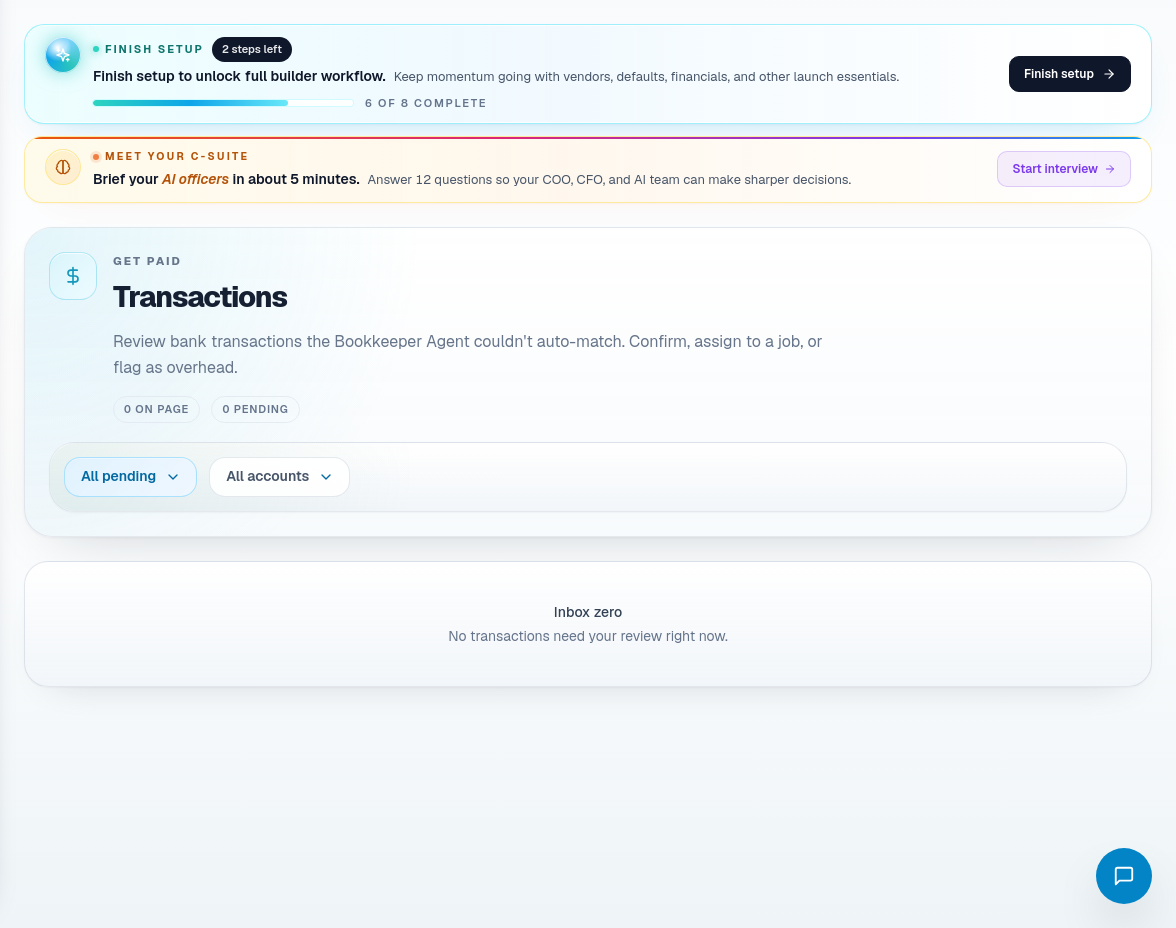
Step 2: Inspect the source transaction
Open the relevant Transactions, AR/AP, invoice, or ledger view.
Verify:
- Customer, vendor, or subcontractor.
- Related job.
- Amount.
- Due date.
- Description or line item basis.
- Supporting document or approval source.
- Whether the work or delivery has actually happened.
- Whether there is a dispute, hold, retainage, or change order dependency.
Step 3: Connect the item to operations
Before approval, check the operational record:
| Financial item | Operational check |
|---|---|
| Subcontractor payment | Work was completed, QA/QC or PM approval exists, no active hold. |
| Vendor payment | PO was approved, material received or terms justify payment. |
| Customer invoice / AR | Milestone, draw, or agreement supports the invoice. |
| Refund / addendum | Quote, change order, or customer agreement supports the adjustment. |
| Payroll / labor | Time entries are approved and exceptions resolved. |
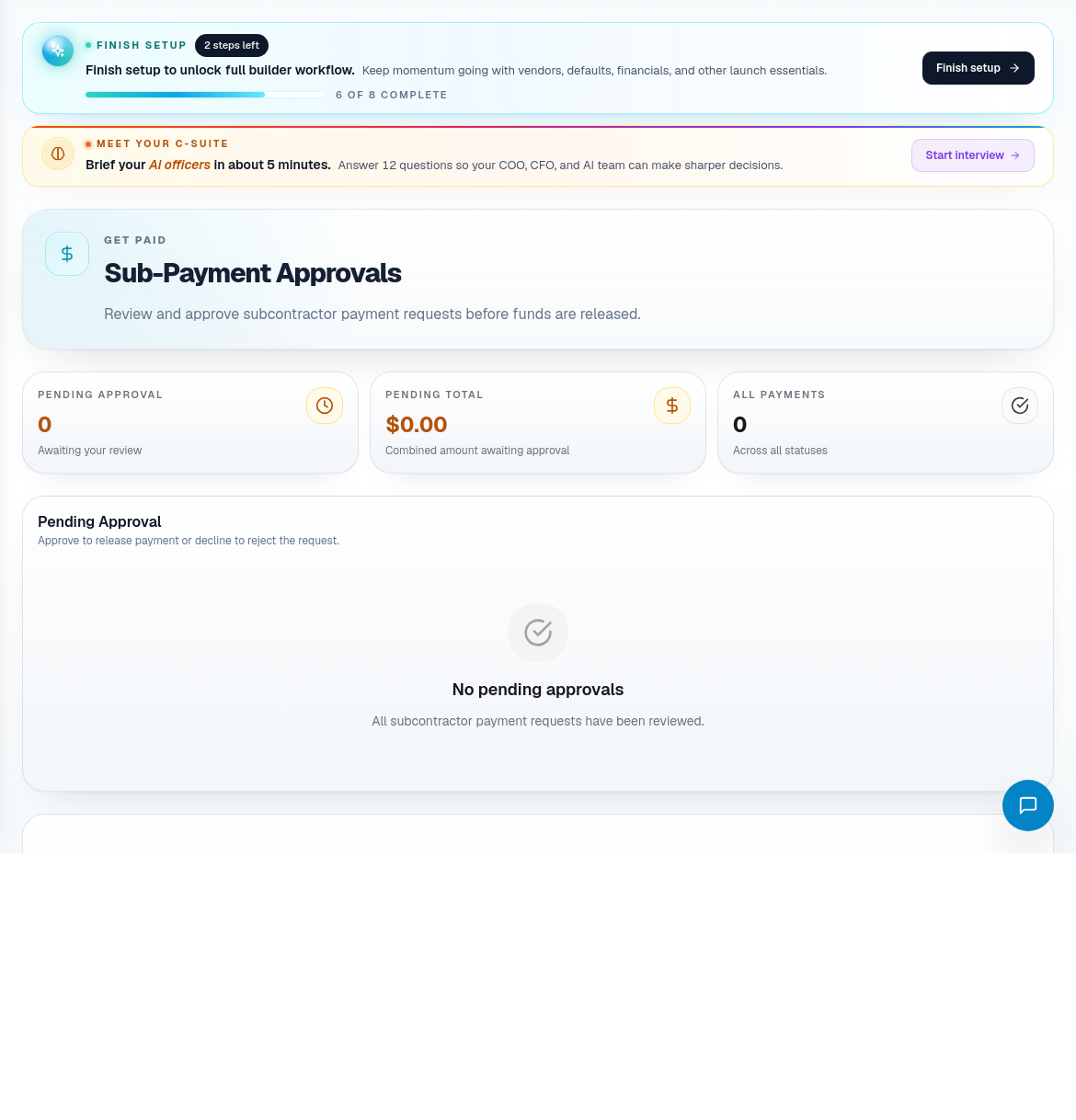
Step 4: Approve, reject, or hold subcontractor payment
Open Sub-Payment Approvals for subcontractor payouts.
Approve only when:
- The subcontractor is the correct payee.
- The job and phase match the work performed.
- Scope is complete or partial payment terms are clear.
- QA/QC, PM, or field approval is present when required.
- Amount matches agreement, PO, or approved change.
- No compliance, lien, warranty, or dispute hold applies.
Use hold or reject when the company needs more evidence. Add a reason so the subcontractor, PM, or finance team knows what must change.
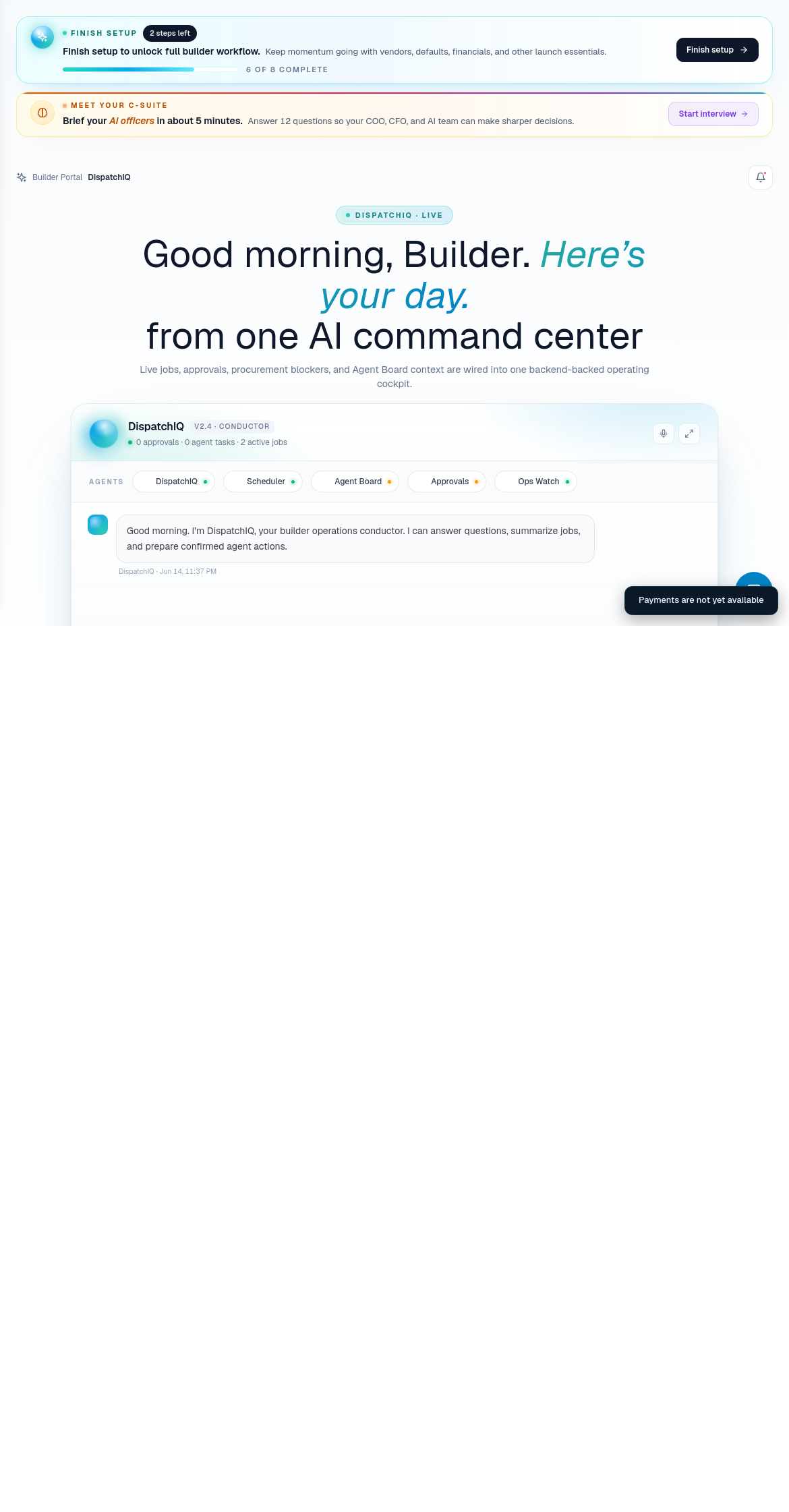
Step 5: Execute or track the payment
Use Payments for execution and status tracking.
Confirm:
- Payment method.
- Bank or payment configuration.
- Payee.
- Amount.
- Scheduled or sent date.
- Payment status.
- Related approvals are complete.
- Notes are recorded if the item is delayed or held.
Step 6: Close the loop with the source workflow
After payment action:
- Update job financial context when the item changes job margin or cash status.
- Update procurement when vendor payment depends on delivery or receiving.
- Update subcontractor notes when payment was held for field reasons.
- Update C-Suite or financial review if the item was a leadership issue.
- Keep records attached for audit and future dispute handling.
Related screens
| Portal area | Use it for |
|---|---|
| Financials Dashboard | High-level financial visibility and prioritization. |
| Transactions / AR/AP | Source record inspection and receivable/payable context. |
| Sub-Payment Approvals | Subcontractor payout review, approval, hold, or rejection. |
| Payments | Payment execution and status tracking. |
| General Ledger / P&L / Balance Sheet | Deeper finance review and reporting. |
| Jobs / Procurement / Timesheets | Operational evidence behind financial decisions. |